Before you start, create an OKX account if you do not already have one. Sign in to OKX before continuing.
Open API keys
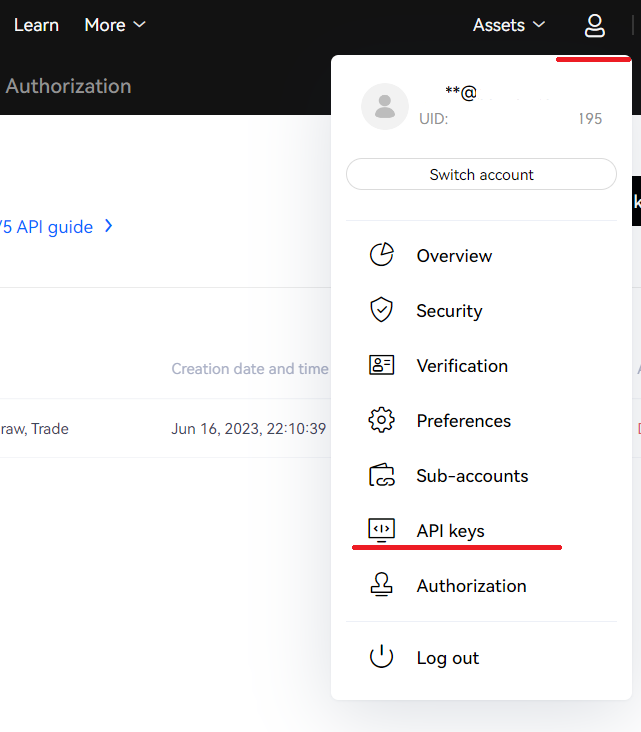
Open your account menu and select API Keys.
Set up a new API key
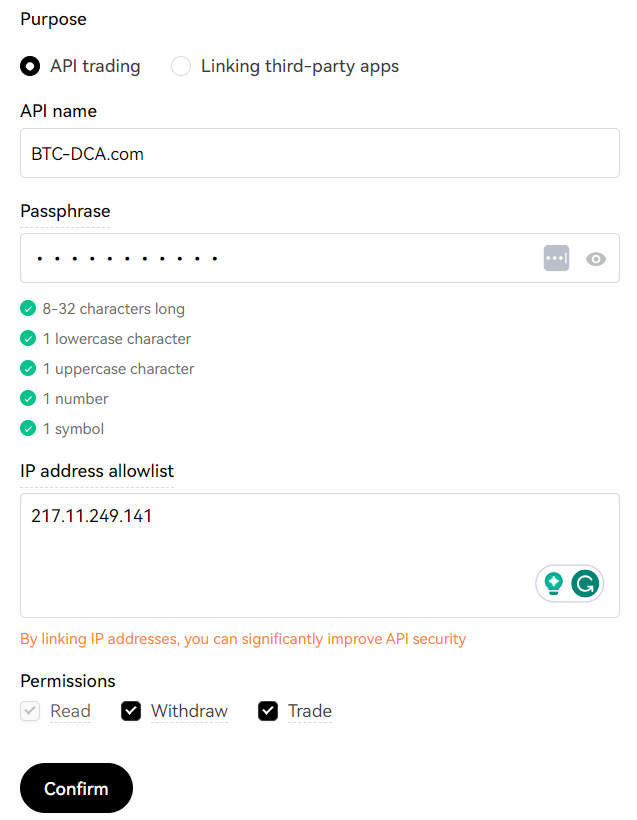
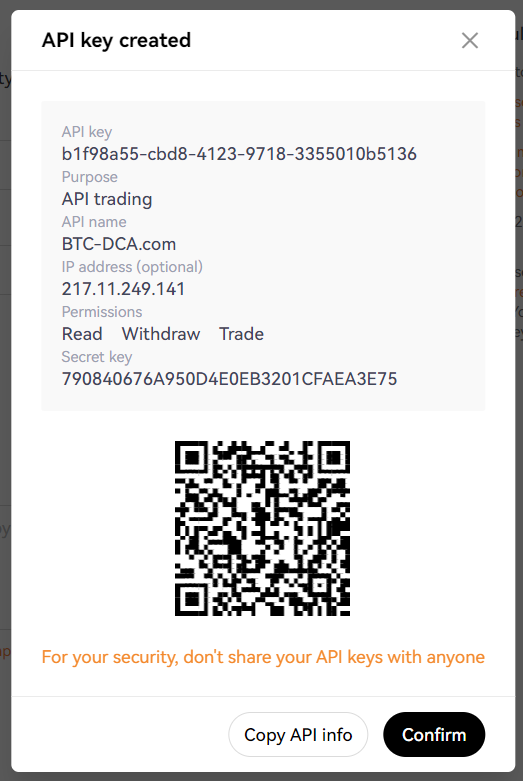
- Select Create V5 API Key and give the key a recognizable label.
- Create and safely retain a unique passphrase. BTC DCA needs this passphrase to connect to OKX.
- Add the BTC DCA server IP address to the IP allowlist: 217.11.249.141.
- Enable only the required permissions: Read, Trade, and Withdraw when you plan to automate withdrawals.
- Submit the API key request.
Authenticate
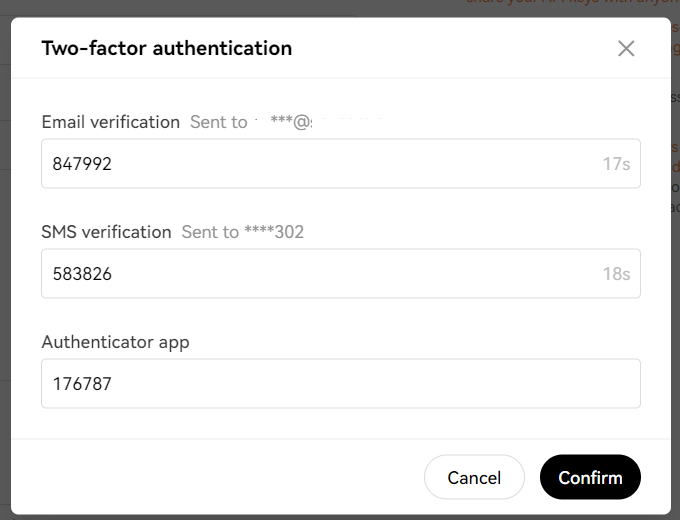
Complete the requested verification with the code sent to your e-mail address, SMS, and authenticator app where applicable.
After submission, copy the API key and secret key. Do not store them in an insecure location or share them with anyone.
Secure withdrawals
Enable the OKX withdrawal allowlist and add only addresses you control. This is a separate protection from the API IP restriction.
Connect BTC DCA and OKX
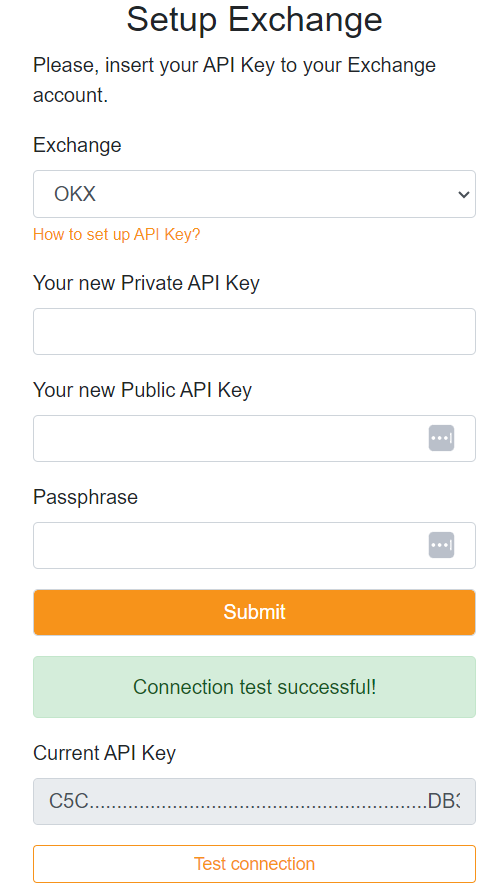
Log in to BTC DCA, open Setup, select OKX, and enter the secret key, API key, and passphrase. Save the connection, then use Test connection. A green success message confirms the integration.
Never share your API secret or passphrase. Keep IP restriction and withdrawal address allowlisting active.